Cloudgate: Cloud Storage Drive
- 4.4
- Rating
- 100.00K
- Installs
- Free
- Price
 Analysis by App-foxy
I tend to judge cloud-storage apps by what happens after the first upload, not by how impressive the storage promise sounds. In that respect, Cloudgate: Cloud Storage Drive is aimed at a familiar household problem: keeping photos, videos, and other files available when several people use the same home devices. It is a free productivity app from CloudGate Technologies, with a 4.4 average from around 1.8 thousand ratings and more than 100 thousand installs.
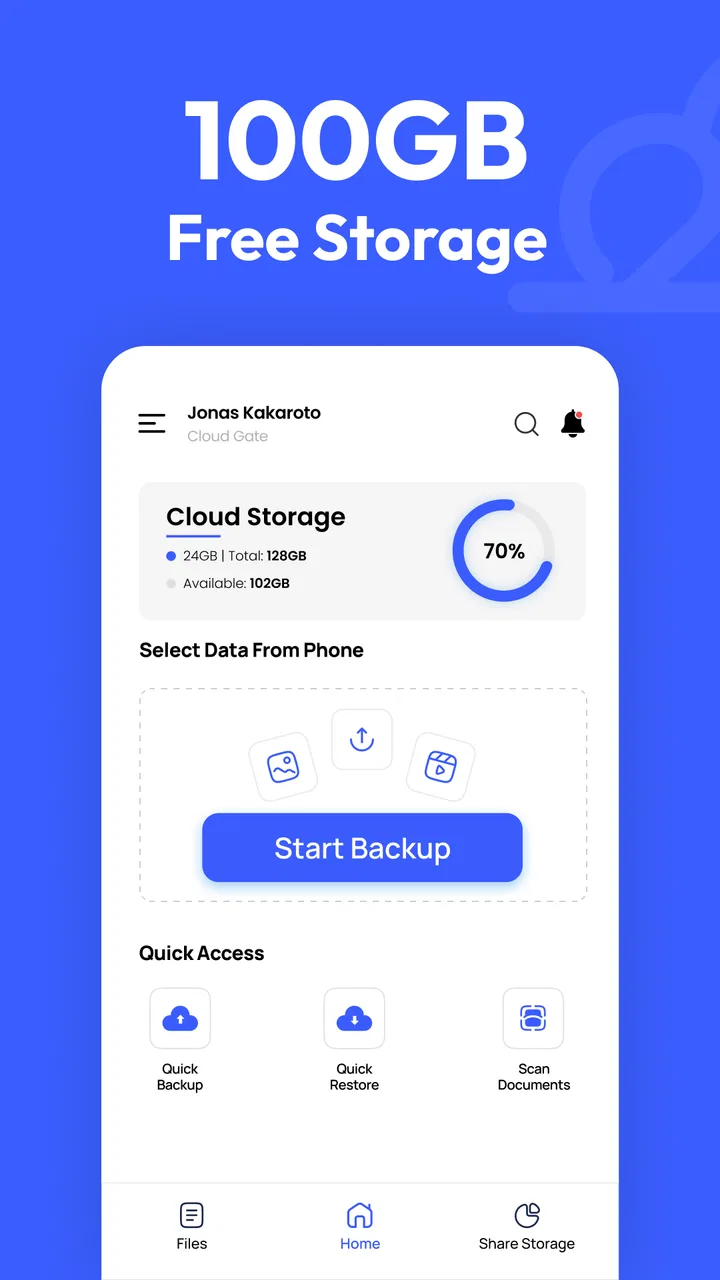
My overall impression is that Cloudgate is most useful when you treat it as a straightforward extra place for personal files rather than as a complete household-management system. The advertised capacity is generous for a free cloud-storage app, and the interface is focused on backup and access instead of trying to turn storage into a social network or a complicated office suite. That simplicity is a strength, although it also means you need to think carefully about who owns the account, who can see the files, and how your household will organize them.
How Cloudgate works in a shared household
When several people share devices or contribute to a household archive, the tricky part is deciding what belongs in a common space and who keeps it orderly. I’d start by agreeing on a narrow purpose—such as shared event photos or household documents—before anyone uploads files. That small boundary makes Cloudgate easier to use without turning one account into a catch-all for everyone’s private material.
You May Also Like

 Blood Strike: 2.5 Anniversary
Blood Strike’s Loadouts Turn Every Drop Into a Tactical Gamble
A close look at Blood Strike’s custom loadouts: how fast access to signature weapons reshapes its battle royale rhythm, rewards preparation, and narrows the gap between fights.

 Pandora - Music & Podcasts
Pandora’s Music Is Easy to Start, but Harder to Recover
Pandora’s strength is its low-effort path from a seed to a station. Its weak spot is how much confidence it asks you to place in connection, setup, and quiet recovery.

 8 Ball Pool
 Is Built on Rivalries, Rematches, and Routine
A close look at the rivalries, rematches, shared routines, and unanswered safety questions that turn a quick pool match into a persistent mobile community.

 Samsung Music
’s Quiet Strength Is Playing What You Already Own
Its reach comes less from spectacle than from dependable access to a personal library. That simplicity is both the app’s strongest retention engine and its ceiling.

 AccuWeather: Weather Radar
AccuWeather Review: A Quick, Clear Forecast for Everyday Decisions
For everyday plans, the best forecast is the one you can understand quickly. AccuWeather makes rain timing, radar, and local conditions easy to act on, with a few trade-offs.

 Hill Climb Racing
Why Hill Climb Racing Still Turns Crashes Into One More Run
A tiny car, a bumpy hill and one more upgrade: Hill Climb Racing keeps resurfacing because its simple chaos makes every near-miss feel personal.
More From Our News Desk
View All News


A practical photo-backup routine
Imagine a family using one tablet in the living room, while each person also takes pictures on a phone. A common source of frustration is that important images end up scattered across camera rolls, messaging apps, removable storage, and old devices. Cloudgate can serve as a central backup destination for photos and videos, giving you a way to move those memories away from a single device.
I would use it in stages rather than pressing every backup option immediately. First, I would upload a small group of photos and check that they appear correctly from the account. Then I would create a simple naming habit, such as separating school events, holidays, receipts, and household documents. This is a less obvious but important point: cloud storage does not automatically create a useful archive. The value comes from deciding what belongs together before the account becomes a dumping ground.
For a shared tablet, I would avoid treating the app as a universal family drawer unless everyone understands the account boundary. A person who opens the account may be able to reach files intended for another household member, depending on how the account is configured and used. Cloudgate is therefore better suited to one clearly owned storage space than to an informal arrangement where everyone assumes their private material will remain separate.
One account or separate accounts?
The easiest arrangement is usually one account for a defined purpose: perhaps a household archive, a backup location for a shared camera, or a place for documents that everyone is allowed to access. That approach reduces confusion, but it is not the same as giving each person a private area. Personal photos, schoolwork, financial files, and sensitive documents should not be mixed casually just because the same device is being used.
If several adults want to use Cloudgate, I would discuss ownership before uploading anything important. Decide whose email or sign-in is attached to the account, who is responsible for recovery, and what happens if the household changes. This is especially important with cloud storage because the physical phone may change hands, while the account continues to hold the files. A shared device does not automatically make a shared account a good idea.
For children, I would keep the arrangement even simpler. An adult can maintain a household archive while the child uses a separate storage account for age-appropriate school projects or creative work, if that fits the family’s own account practices. I would not rely on Cloudgate as a substitute for parental supervision or device-level restrictions. Its role here is storage, not a complete family-safety platform.
What setup feels sensible
The app is free to install, and its content rating is Everyone, which makes it approachable for a broad household audience. That does not remove the need for an adult to explain what is being uploaded. A child may see cloud storage as an endless camera roll, while an adult may be thinking about privacy, clutter, and long-term access. A short conversation before the first large backup can prevent many misunderstandings.
I recommend starting with a small test folder. Upload a few ordinary photos, open them again, and check whether the workflow feels clear on the device you actually plan to use. Then try a video, because videos are often the files that expose practical friction first: they are larger, take longer to move, and are more frustrating to repeat if something goes wrong. This test also helps you learn whether your household is comfortable with the app’s browsing and organization style before committing to a full archive.
Cloudgate’s current version is 7.6.1, and it supports Android 7.0 or later. That makes it a possible option for some older Android phones, but I would still check the actual household devices before planning a migration. Operating-system compatibility is only one part of the experience; available storage, battery condition, camera-file size, and connection quality can matter just as much during a large backup.
Keeping boundaries clear between people
Shared devices create a special risk: people often confuse the device profile with the cloud account. If a parent, partner, or roommate signs in to Cloudgate on a tablet, the app may become associated in everyone’s mind with that tablet rather than with the person or purpose behind the account. I would label the account’s purpose clearly and avoid saving private material there simply because the app is already installed.
A useful household rule is to separate “everyone may see this” from “this belongs to me.” The first group might include a shared event album or scanned appliance instructions. The second could include personal conversations, identity documents, medical paperwork, or private photos. Cloudgate can be part of the first workflow, but I would choose a more deliberately private arrangement for the second rather than depending on informal trust.
This matters even more when a phone is passed between age groups. Younger users may tap through folders without understanding why a file is sensitive. Older relatives may assume that a backup is private because it is not visible in the camera roll. I found that the best protection is not a complicated filing system; it is a clear account owner, a small number of purposeful folders, and a rule that private files do not go into the household archive.
Coordinating backups without creating duplicates
Several people can easily back up the same images more than once. One person uploads from a phone, another copies the same photos from a tablet, and a third adds them again after editing. The result is wasted space and a confusing archive. Before inviting multiple contributors, I would decide who handles which source. For example, one person could manage the shared camera, while everyone else keeps personal backups separate.
Another workable method is to divide responsibility by event. One person uploads the holiday photos, another handles school performances, and someone else keeps household paperwork organized. The key is not the exact division but the fact that someone knows which files have already been added. This is a practical advantage of using Cloudgate deliberately: its storage can become a dependable reference point, but only if the household avoids treating it as an automatic duplicate of every device.
I also prefer a two-step process for important material. Upload the file, then open it from the cloud before deleting the local copy. For irreplaceable photos or documents, keep another copy somewhere else until you are confident that the cloud version is complete and readable. This is not a criticism unique to Cloudgate; it is a sensible rule for any backup service. A cloud account is not the same thing as a full backup strategy if it is the only place a file exists.
Where it differs from familiar alternatives
Cloudgate feels more focused than a general-purpose office platform. Services built around email, documents, calendars, and collaboration may be better when a household needs live editing, shared schedules, or extensive integration with existing accounts. A dedicated photo service may also feel more natural for people who mainly want automatic memories, visual search, and photo-focused organization.
The reason to consider Cloudgate is its direct storage-first approach. If your main question is “Where can I put these photos, videos, and files so they are not trapped on one phone?”, the app’s purpose is easy to understand. It is less compelling if you expect a full family workspace, sophisticated document collaboration, or a detailed permission system. In those cases, a broader cloud ecosystem may justify its extra complexity.
There is also a cost trade-off worth noticing. Cloudgate is free, but in-app purchases range from $1.99 to $179.99 per item. I would not make a purchase simply because the app offers a large storage allowance. First measure how much your household actually needs, identify which files are worth keeping online, and decide whether the account will remain useful over time. A low initial cost can still become an ongoing commitment if everyone uploads large videos without an organizing plan.
Trust, age, and everyday responsibility
The Everyone age rating makes the app suitable for general audiences, but an age label should not be mistaken for a privacy explanation. A child can understand how to upload a picture without understanding who controls the account or why a document should not be shared. For younger users, I would demonstrate the difference between a personal photo, a household photo, and a sensitive file before allowing independent use.
For teenagers, Cloudgate could be useful for school projects, videos, or moving files between devices, provided the account arrangement is clear. I would encourage them to keep schoolwork in named folders and avoid sharing the household sign-in. That teaches a valuable digital habit: access to a device is not the same as ownership of every account on it.
For older family members, simplicity may be more important than advanced options. A small number of visible folders and a printed or safely stored reminder of the account owner can make the service easier to maintain. I would avoid creating a system that depends on one technically confident person being available every time someone needs a file. If the archive cannot be explained in a few sentences, it is probably too complicated for a shared home.
Limitations I noticed in the overall fit
Cloudgate’s storage-first identity is also its main limitation. It does not become a complete household coordination tool merely because several people can use the same device. You still need a separate way to decide what should be uploaded, who manages the account, and how private material is separated. Families looking for built-in supervision, detailed user roles, or a shared calendar should look beyond a storage app.
Large media collections also require patience. Photos are manageable in small batches, but videos can quickly make any cloud workflow feel slow or disorganized. I would not begin with an entire camera roll unless I had checked the connection, cleared unnecessary files, and decided on folder names. A staged upload is less exciting, but it is safer and makes it easier to spot mistakes.
The purchase range is another reason to pay attention during setup. Free access can be attractive for occasional backups, while heavier users may be tempted to expand their space before they have cleaned up duplicates. My advice is to treat extra capacity as a later decision. Organize first, upload only what matters, and then judge whether the remaining space meets your real needs.
Who should use it, and who should skip it?
I would recommend Cloudgate to someone who wants a simple cloud destination for photos, videos, and general files, especially when an older compatible Android device is still in regular use. It can also suit a household that is willing to establish one clear archive, assign responsibility, and keep private accounts separate from shared material.
I would be more cautious about recommending it to a family that expects automatic organization, extensive collaboration, or strong account separation inside one shared space. If your priority is editing documents together, managing family schedules, or maintaining distinct profiles with carefully controlled permissions, a broader service may be a better match. Cloudgate is not a poor choice in that situation; it is simply solving a narrower problem.
I would also skip it as the only home for irreplaceable files. Keep an additional copy of important documents and memories, whether on another device or through another backup method that you trust. The app can be a useful layer in a backup routine, but relying on any single location leaves you vulnerable to account mistakes, accidental deletion, or loss of access.
My household verdict
After looking at Cloudgate through the lens of shared devices, I see a practical storage app with a clear use case rather than a full family platform. Its free entry point, broad Everyone rating, and focus on photo, video, and file storage make it easy to test. CloudGate Technologies has kept the central idea understandable: put files in the cloud so they are not tied to one phone.
The best results come from using it with boundaries. Pick an account owner, define whether the space is personal or shared, create a few meaningful folders, and test uploads before moving a large collection. For a household archive, that discipline matters more than uploading everything quickly. For private files, use separate account habits instead of assuming a shared tablet provides privacy.
My final recommendation is cautiously positive. I would choose Cloudgate for a straightforward backup destination and for families that can coordinate their storage habits. I would choose a different kind of service when the real need is family supervision, collaborative work, or advanced permissions. Used for what it does best, Cloudgate is a practical place to begin organizing household photos and files; used as an all-purpose family system, it may leave you doing more coordination yourself.
FAQs for Cloudgate: Cloud Storage Drive
01What features does Cloudgate offer for managing my files?
Cloudgate provides a comprehensive suite of features for managing files, including seamless file syncing across devices, secure cloud storage, and easy sharing options. Users can organize files into folders, access them offline, and collaborate with others in real-time. Advanced search capabilities and integration with popular productivity tools further enhance its functionality.
02How secure is my data with Cloudgate?
Cloudgate prioritizes user data security by employing end-to-end encryption and robust security protocols. It ensures that only authorized users can access the files, and regular security audits are conducted to maintain data integrity. Additionally, two-factor authentication adds an extra layer of protection to your account.
03Is Cloudgate compatible with multiple devices and operating systems?
Yes, Cloudgate is designed to be highly compatible, supporting both Android and iOS platforms. It also offers desktop applications for Windows and macOS, ensuring a seamless experience across different devices. Users can effortlessly access and manage their files from smartphones, tablets, and computers.
04What are the storage plans available, and are there any free options?
Cloudgate offers a variety of storage plans to accommodate different needs, ranging from free basic plans with limited storage to premium plans with extensive capacity. The free plan provides essential features and a decent amount of storage, while paid plans offer more space and additional functionalities, such as priority support and enhanced collaboration tools.
05How does Cloudgate handle file sharing and collaboration?
Cloudgate simplifies file sharing and collaboration by allowing users to share files or folders with specific people or generate shareable links. Users can set permissions to control who can view, edit, or comment on their files. Real-time collaboration tools enable multiple users to work on documents simultaneously, making it ideal for team projects.
Pros
- Easy to navigate interface.
- Seamless file sharing options.
- Cross-platform compatibility.
- Secure data encryption.
- Generous free storage tier.
Cons
- Limited offline access features.
- Occasional sync delays.
- No built-in document editor.
- Ads in free version.
- Requires constant internet.

Cloudgate: Cloud Storage Drive
Gallery